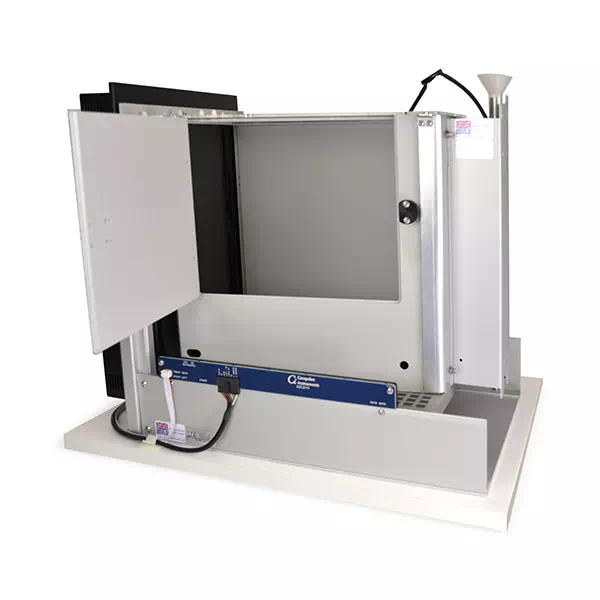
In this Tech Cast, Julie Gill, our Behavioral Product Specialist, shows you the minimum needed to run our pre-written schedules. She works through the process on a Bussey-Saksida Touchscreen System running our ABET Cognition software. Paired with the ABET Core Intelli-Interface, ABET Cognition can control up to 20 touchscreen chambers from one PC.
The Tech Cast is split into five videos that follow the workflow, from finding your manuals to exporting results. Each section below pairs a video with a short summary of what it covers.
This Tech Cast covers the following:
- Quick Start Guide
- Starting the System
- Creating a Database
- Running an Experiment
- Data Analysis
1. Quick Start Guide
In this first video, Julie shows you where to find each task’s manual, stored in your ABET II folder under Documents. Every manual explains how to install the task if needed and how to run its training stages. It also covers test schedules for checking your hardware at the start of each day, and where to find information on the data analysis filter provided.
2. Starting the System
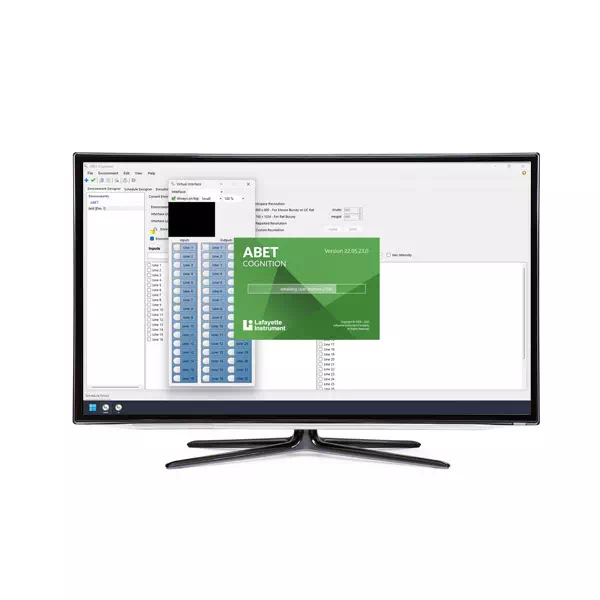
Next, Julie powers up the system in order: the power and controller PC first, then the ABET Core Intelli-Interface (Model 81430) behind each chamber’s touchscreen. Its green light flashes while it boots and turns steady when it’s ready to connect. Then open ABET Cognition; if everything is connected correctly, all of your chambers will appear in the Execution Manager.
3. Creating a Database
Before running an experiment, you’ll need a database to save your data into. Julie creates one in the Data Saving Options, under Edit > Preferences, giving it a Connection ID to show in ABET Cognition and a File Name for the file itself. The two names can match or differ, and the file saves to the ABET system folder by default.
4. Running an Experiment
With everything in place, Julie loads an experiment into the chambers from the Execution Manager, then sets the maximum trials and time and selects your database. She fills in details such as animal ID, starts the run, and unloads the schedule once it finishes. Always leave Allow Debugging set to No when running animals; it’s only for testing programs.
5. Data Analysis
In the final video, Julie finds a set of results in the Data Viewer and runs the task’s pre-written analysis. She then builds a custom report in the Report Editor, using the measures listed in Chapter 7 of the task manual. Save the report to reuse it, then export the results as a CSV file for Excel or another analysis package.
That completes our Quick Start series, and further videos will go deeper into each section. The full-length Quick Start Guide for Bussey-Saksida Touchscreens and ABET Cognition is also available as a single video on the Lafayette Life Science Knowledge Hub.
If you have any remaining questions, please contact Campden Instruments at info@campdeninstruments.com.
Related Products
Upcoming Events
-
Society for Neuroscience 2026
Date: November 14-18, 2026 -
American Society for Gravitational and Space Research (ASGSR) 2026
Date: December 2-5, 2026 -
AALAS National Meeting 2026
Date: October 25-29, 2026